
Lagerbestandsübersicht manual auslösen
Triggering the Scheduled Digest Mail via FroshTools
Section titled “Triggering the Scheduled Digest Mail via FroshTools”This guide shows how to manually trigger the codecap_low_stock_notification.check scheduled task during development and testing using the FroshTools admin plugin.
Prerequisites: FroshTools must be installed and active. At least one product with
stock <= 0must exist. The scheduled check must be enabled in the plugin config.
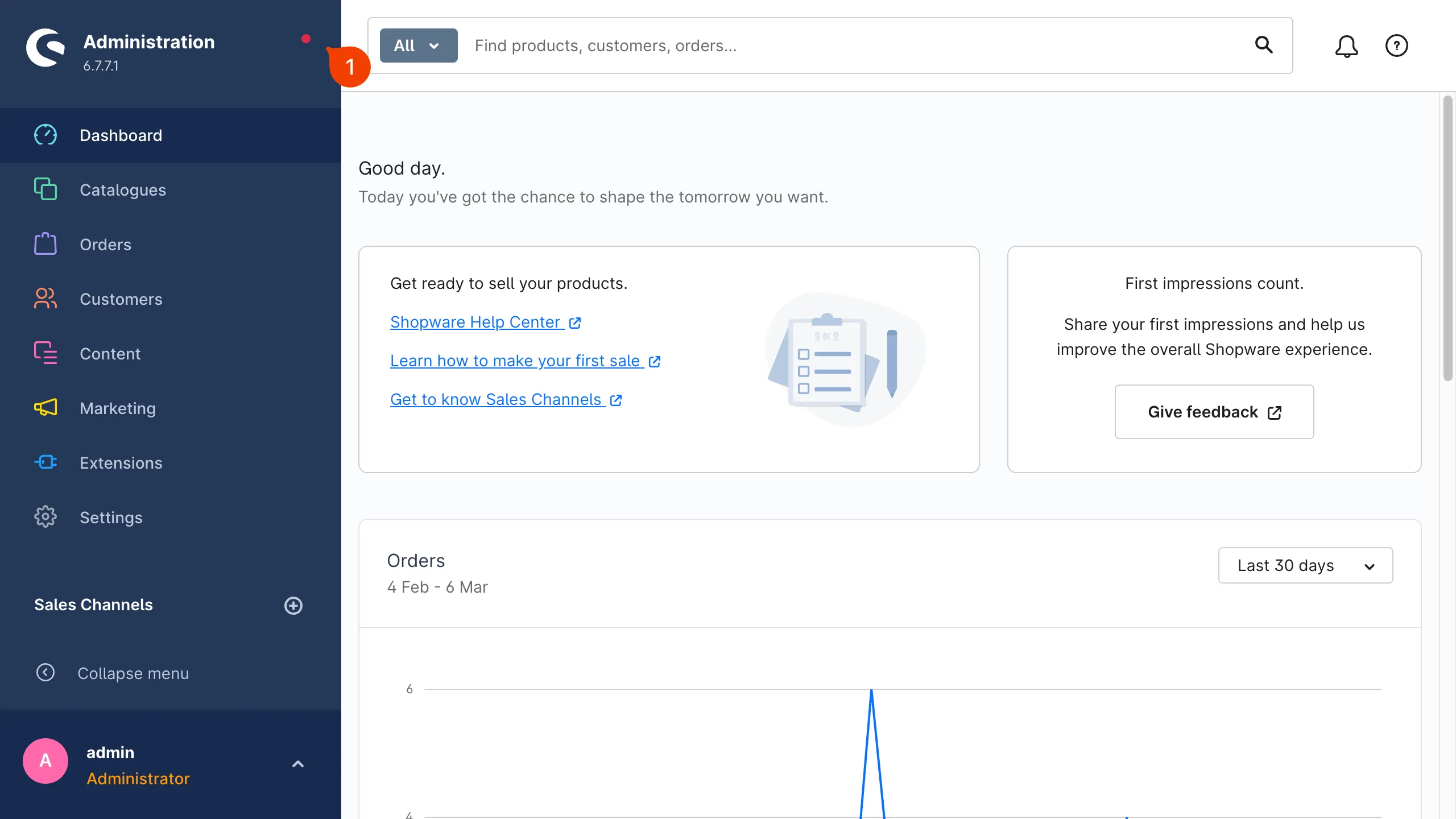
Step 1: Open FroshTools via the red dot
Section titled “Step 1: Open FroshTools via the red dot”From any page in the Shopware admin, click the red dot next to “Administration” in the top-left corner.
The red dot is the FroshTools status indicator. Clicking it opens the Tools panel directly.
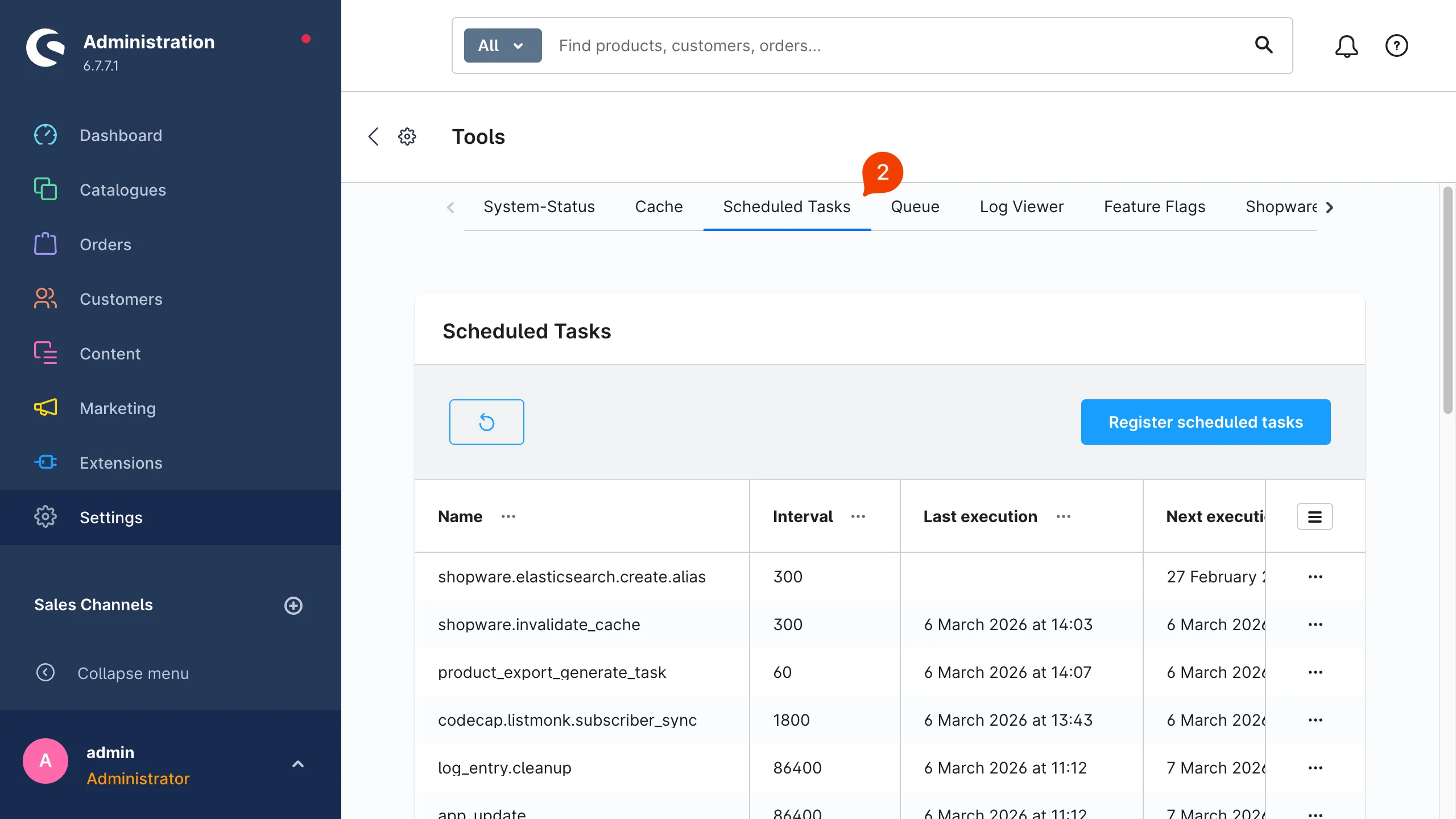
Step 2: Navigate to Scheduled Tasks
Section titled “Step 2: Navigate to Scheduled Tasks”Click the Scheduled Tasks tab in the FroshTools navigation bar.
Step 3: Open the actions menu and start the task
Section titled “Step 3: Open the actions menu and start the task”Scroll down the task list to find codecap_low_stock_notification.check and
click the ... (three dots) button on the right of the codecap_low_stock_notification.check row to open the actions dropdown.
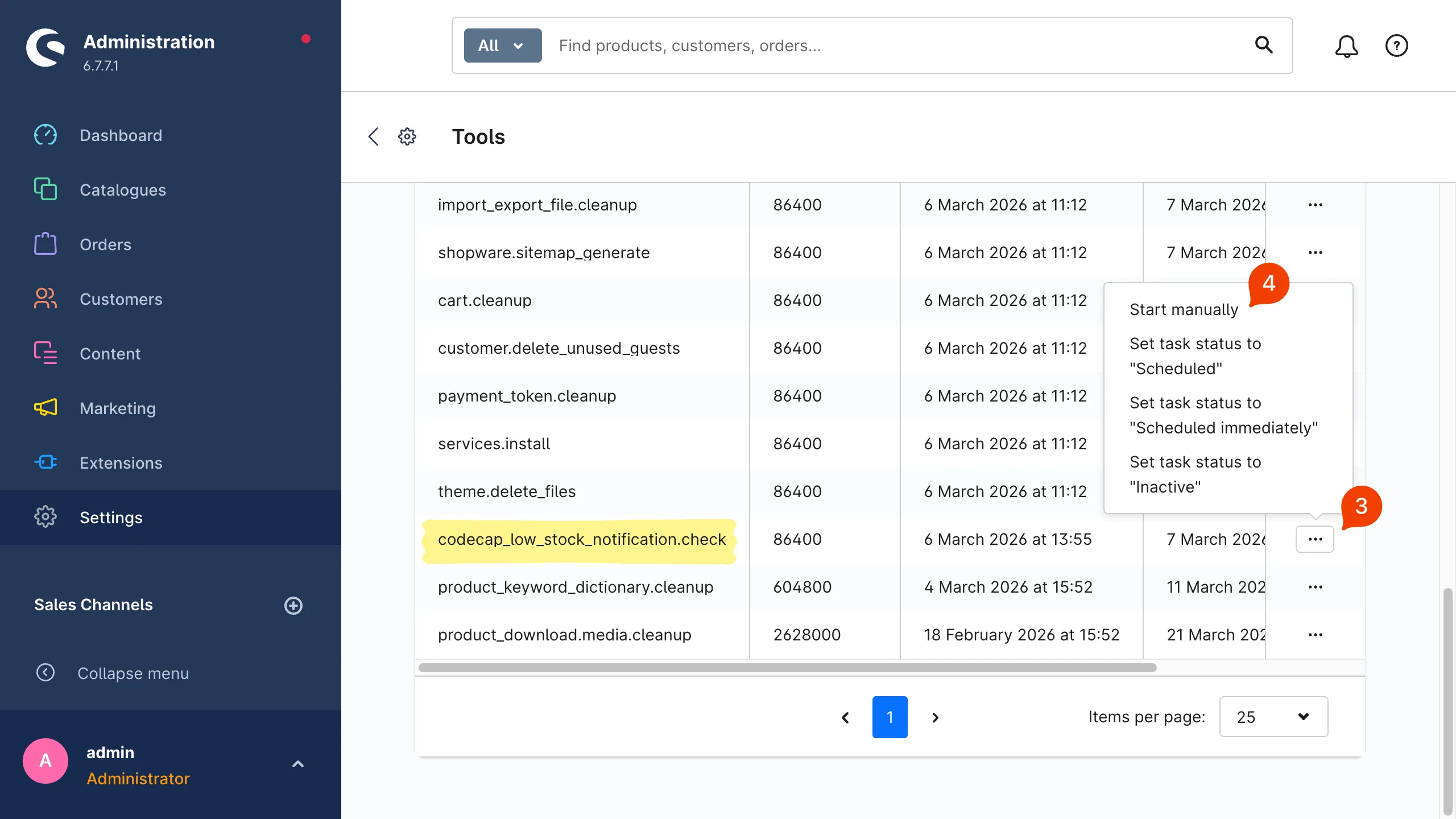
Click “Start manually” to execute the task immediately.
Step 4: Check E-Mail client for the digest email
Section titled “Step 4: Check E-Mail client for the digest email”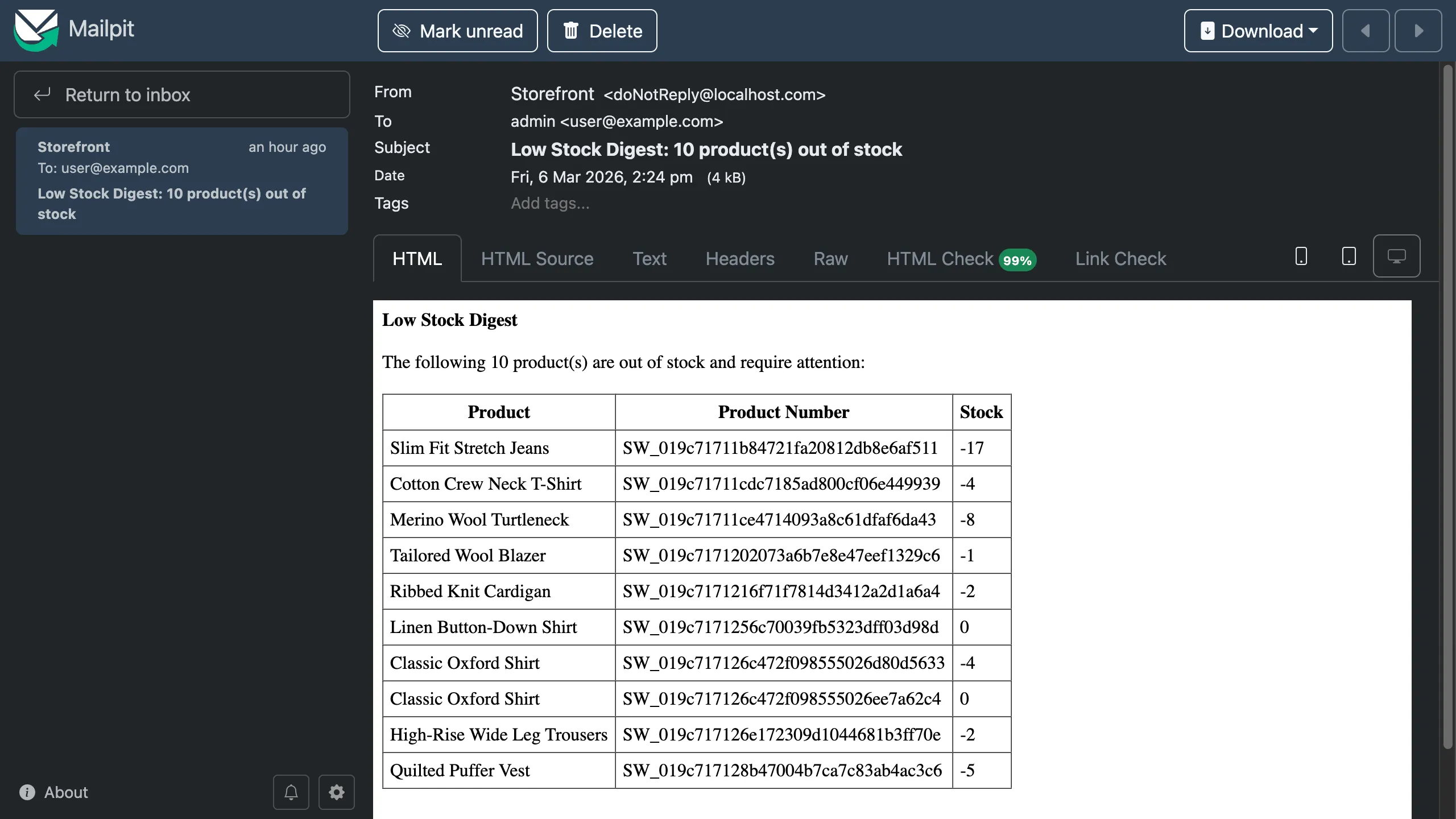
How the plugin remembers which products were already notified
Section titled “How the plugin remembers which products were already notified”The plugin keeps track of every product it has sent a notification for. A product that was already included in a digest will not appear in the next digest — even if it is still out of stock.
When will a product be included again?
As soon as you restock the product (set stock back to a positive number), the plugin forgets the previous notification. The next time the product goes out of stock, it will be included in the digest again.
Restocking works the same way regardless of how you do it:
- Manually in the Shopware admin (product edit page)
- Via the Shopware API
- Via an import or third-party tool that updates the stock field
This prevents you from receiving repeated notifications for the same product that has been out of stock for a long time.
Troubleshooting
Section titled “Troubleshooting”The task ran but no email arrived
Section titled “The task ran but no email arrived”All products already notified — The most common reason. The plugin will not send another notification for a product that was already included in a previous digest, even if it is still out of stock.
Fix: Go to Extensions → My Extensions → Low Stock Notification → Configure and click “Clear sent history” under the Scheduled check section. This removes all scheduled notification log entries so every out-of-stock product will be picked up again on the next run.
Scheduled check is not enabled
Section titled “Scheduled check is not enabled”The task handler exits immediately if the scheduled check is disabled in the plugin config.
Fix: Go to Extensions → My Extensions → Low Stock Notification → Configure and make sure “Enable scheduled check” is turned on.
No products with stock ≤ 0 exist
Section titled “No products with stock ≤ 0 exist”If all products currently have positive stock, the task finds nothing to report and sends no email. Check the product list and confirm at least one product has stock at 0 or below.
The email was sent but it is empty or shows no products
Section titled “The email was sent but it is empty or shows no products”This can happen if all matched products are parent products (configuration templates with variants). Parent products are not orderable and are excluded from notifications by default.
Fix: Check the “Product type filter” setting in the plugin config. If only variant notifications are enabled, make sure out-of-stock variants exist — not just their parent.
No admin user with a valid email address exists
Section titled “No admin user with a valid email address exists”The digest is sent to all users with admin rights. If no admin user exists or all admins have no email address set, the email cannot be delivered.
Fix: In Settings → Users & Permissions, confirm at least one admin user has a valid email address.
FroshTools shows an error when clicking “Start manually”
Section titled “FroshTools shows an error when clicking “Start manually””The task runs asynchronously via the message queue. If the queue worker is not running, the task is enqueued but never executed. FroshTools only schedules the task — it does not run it inline.
Fix: Run the queue consumer manually:
ddev exec bin/console messenger:consume async --limit=5 --time-limit=30Then check Mail Client for the email.